

Appearance
INFO
Please note that the options available to use may be dependent on the licence tier that the sender is using, refer to our pricing plans for more information.
Forms
Secure forms allow you to collect data and files in a structured, user friendly way, while maintaining the key principle of Transfer: end-to-end encryption. This means your data is always encrypted and we, nor anyone else, can ever view or decrypt it
Creating a new form
Click on New to start the form creation process. You can then create a new template or choose an existing template. If you would like a template designed, please contact us on [email protected]
Type and Form name
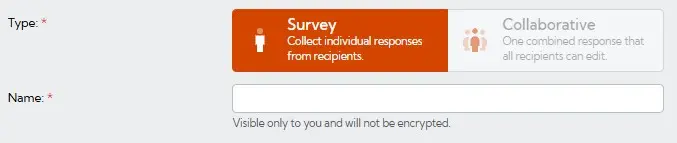
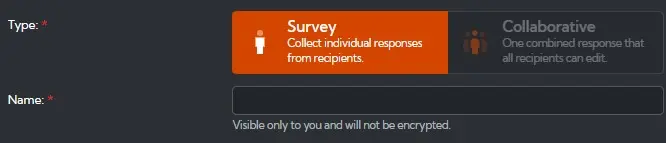
The form type will default to "Survey", which allows multiple people to submit individual responses to a form. Collaboration mode is coming soon.
Please enter a form name, which is shown on the All items > Forms page. This value is only visible to you and is not encrypted. The form name can be edited during form creation and after the form has been published.
Form Deadline


This option allows you to configure how long recipients of the link have to provide submissions. This can be edited during form creation and after the form has been published.
Security
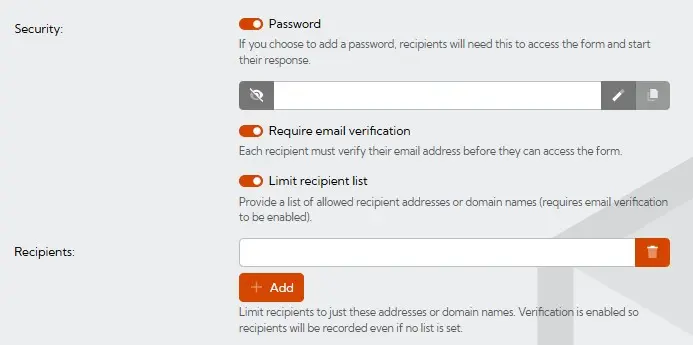
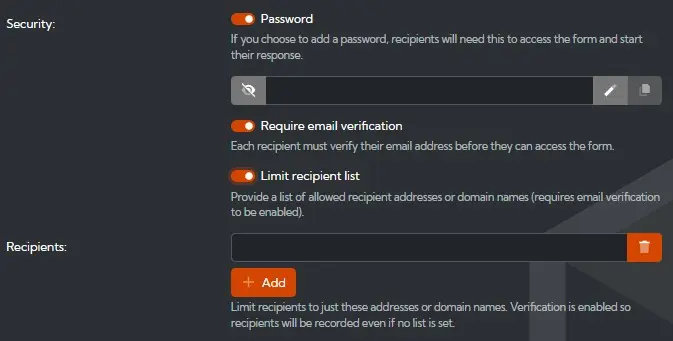
Add password provides an extra layer of security and is optional (see using a password). The password must be sent via a separate method to the link. For example if the link or code is emailed, then send a text message with the password.
WARNING
The password must be sent by a different method to the link else the additional security benefit is lost.
An extra layer of security can be enabled by requiring the recipient to verify their email address before they can access the form.
Additionally the recipient list can be limited so that only the recipients specified in the address box will be authorised to access the form. The recipients will be emailed a one-time access code. If the recipient is already logged in as a Hexiosec Transfer user, they will not be sent an access code as they are already authenticated.
WARNING
After the form has been saved, only the recipient list can be amended.
You can now click Create and start creating your new form.
Using the Form Builder
Preview options
As you build the form, the Builder/Preview toggle can be used to preview how the completed form will look to the recipient.
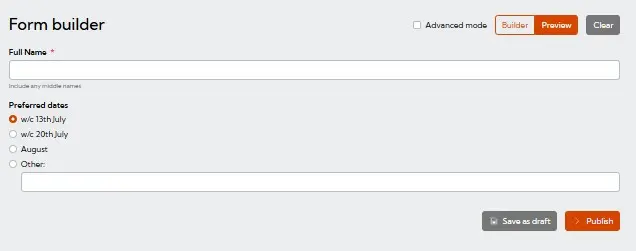
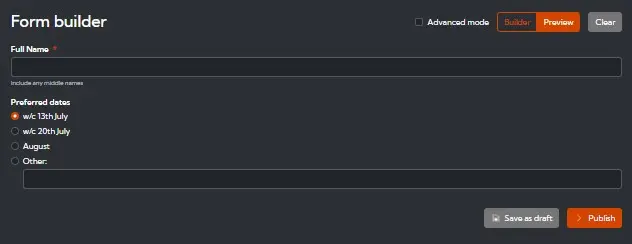
By selecting show more options within an input section, a preview option is shown just for that section. The section previews are interactive and also allow you to test the field inputs. Advanced mode provides more detailed options during form development if required.
Title and Description
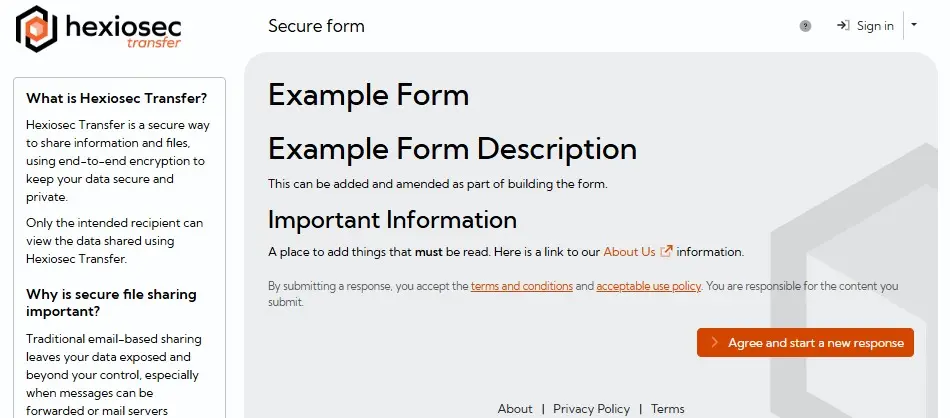
The title (mandatory) and description (optional) will be visible to the recipients when they use the sharing link or code.
Format Builder
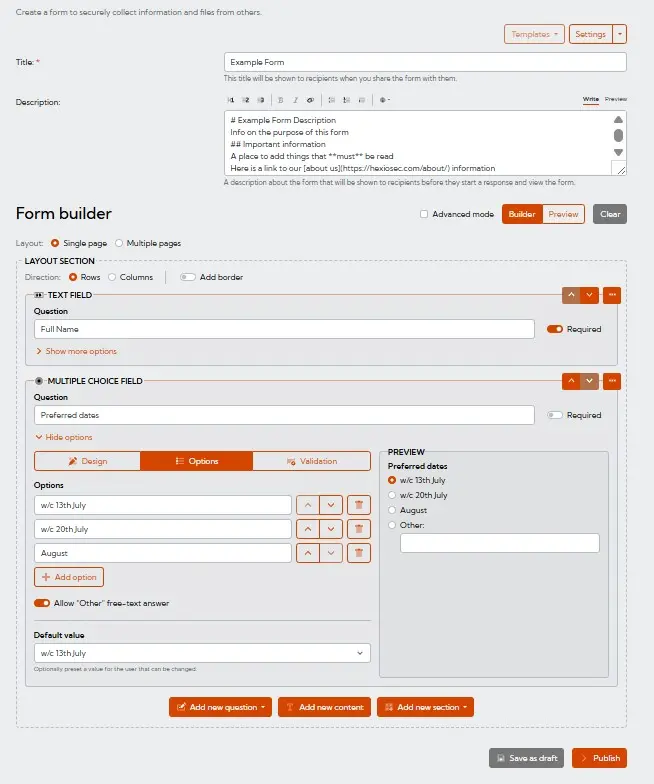
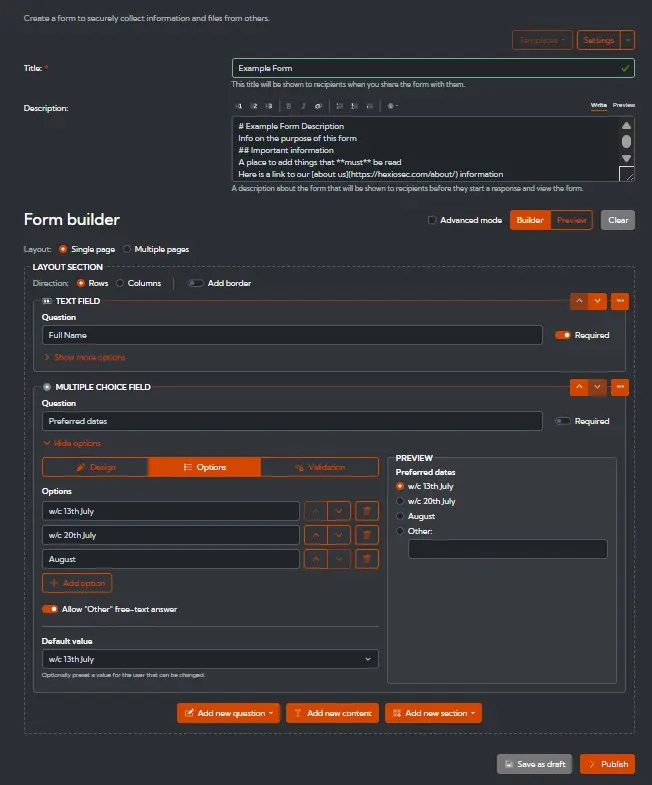
A form consists of layout sections and can be on one page, or across multiple pages. Each layout section can be displayed in rows, where the fields are stacked vertically, or in columns where they are displayed side by side.
Creating Fields
The field options available are:
- Text
- Number
- Multiple choice
- Drop-down
- File upload
Each input type can be left as optional or set as a required field for the recipient to complete. Using show more options allows more contextual information to be provided for the input, a default value to be provided, and field validation to be specified.
Add content
The content field can be created in plain text or markdown content. This is used to add more additional guidance or context to the person completing the form.
Add Section
Add additional sections to build the form, the following options are available:
- Layout section
- These are additional sections within the page to organise the data collection into relevant sections.
- Repeating section
- Useful for when the user may need to add multiple field entries; for example, listing emergency contacts.
- Optional section
- Allows optional information to be added to the form by the user.
Publishing
When the form is ready to be used, click on Publish The sharing options will then be displayed. After a form has been published, the form content cannot be amended but the content retention period and list of recipients may be changed.
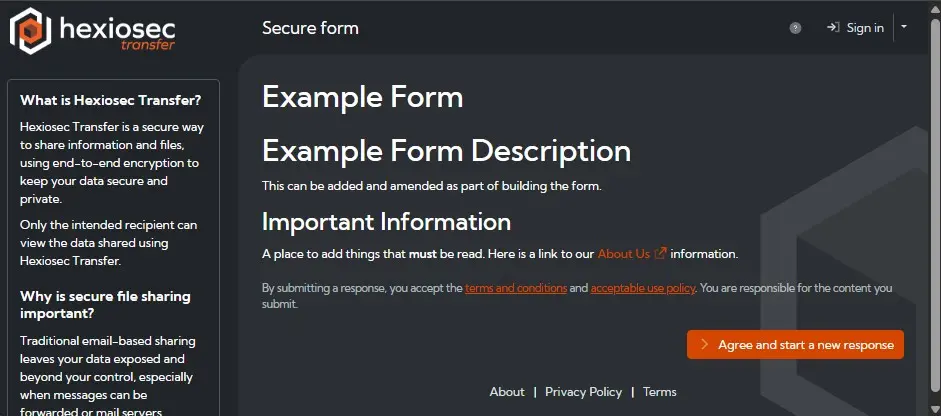
The recipient won't need a Transfer account to access the form, and will be directed to a page similar to this, which shows the title and description as entered in the form builder.
When someone submits a response to a form, it will be shown on the main Transfer page and the form publish page, and the form owner will be notified; the responses are searchable and can be exported as CSV or JSON.
Deleting a Form
WARNING
A deleted form and the associated responses cannot be restored.
From the All items page, find the form and use the drop-down to select delete form.