

Appearance
INFO
Please note that the options available to use may be dependent on the licence tier that the sender is using, refer to our pricing plans for more information.
Sharing files with Hexiosec Transfer
When files are sent, they are encrypted in the senders browser before being uploaded to our servers. With Hexiosec Transfer the files never leave the senders computer unencrypted. After encrypting and uploading is complete, a download link/code is provided to be shared with the recipients.
Send name
Enter a short send name to help the sender find the transfer after it has been sent. This information is only visible to the sender and helps them to keep their outbox organised. If the Outlook plugin is used then this will get set as the email subject line.


Expiration criteria
The expiration date can be up to 7 days from the date of the transfer - for Enterprise customers this may differ, please check with your local Hexiosec Transfer administrator.


The expiry and download limits will depend on your licence tier, find out how these limits are applied.


Additional Security (optional)
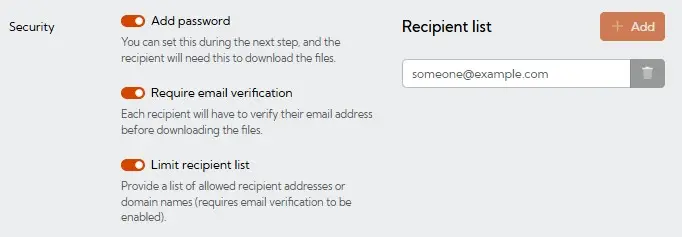
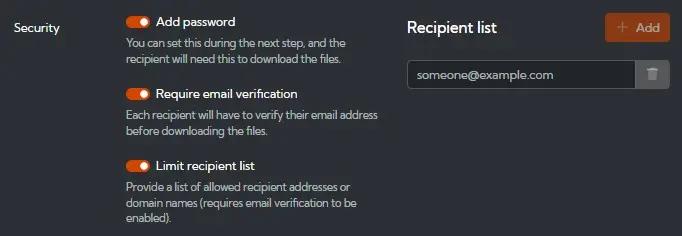
Add password provides an extra layer of security and is optional, Using a password. The password must be sent via a separate method to the link. For example if the link or code is emailed, then send a text message with the password.
WARNING
The password must be sent by a different method to the link else the additional security benefit is lost.
An extra layer of security can be enabled by requiring the recipient to verify their email address before they can access the transfer.
Additionally the recipient list can be limited so that only the recipients specified in the address box will be authorised to view the content. The recipients will be emailed a one-time access code that they will need to use to access the transfer, if the recipient is already logged in as a Hexiosec Transfer user, they will not be sent an access code as they are already authenticated.
When the recipient has downloaded the file/accessed the message, the sender will be notified and the transfer history will be updated.
Upload the files
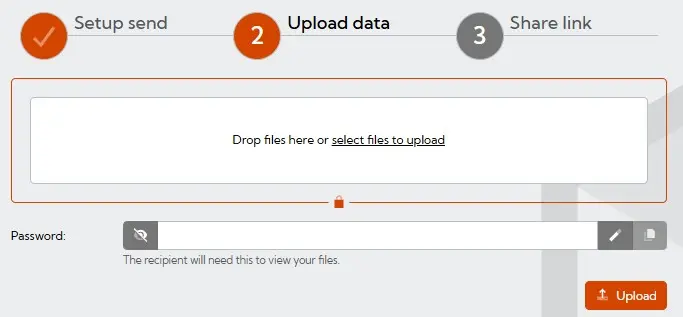
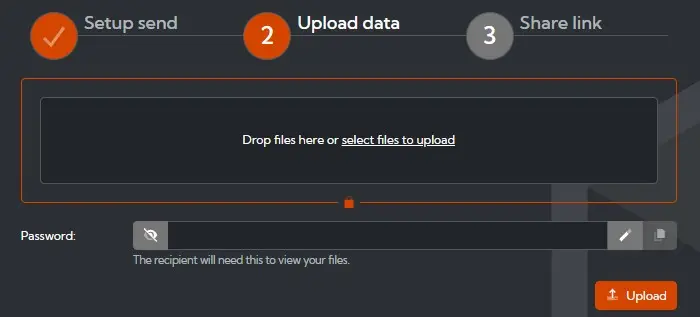
Files can be dragged and dropped from a file explorer window or selected on the device via the upload link.
WARNING
If you are sending multiple files and the resulting transfer will be larger than 4GB, please send as separate file transfer or zip prior to uploading into Transfer.
If the password option was selected on the previous page, then a password will now need to be set. The sender can create it or click on the pen option for a complex password to be automatically created. The copy icon next to the pen icon can be used to copy the password which will also need to be sent to the recipient but by a different method to the link (see Using a password).
Share by link, code, or QR code
The final page will show the link/code which can be copied and sent to the recipient. If there are issues sending a link (for example, some email systems will amend or remove links) then a code/QR code can be copied and used instead. Clicking on the 'share via email' button will launch the sender's default email application to create a new email message.
TIP
The "Share via Email" button is implemented as a mailto: link with pre-filled subject and body, intended to trigger the default mail application for the browser/device. If this isn't working, check that the browser/device is set to the mail application you use.